Getting Started
This guide provides an overview of the Baker HPC and instructions on how to use it effectively. The HPC is a shared resource that allows users to run compute-intensive jobs over a number of nodes simultaneously. By following the steps outlines in this guide, you can ensure your jobs run efficiently and without interruption. The system is evolving, so this guide may be occassionally be out of date. The contact person for the HPC is Shanon Loveridge.
Access to the HPC
Access to the Baker HPC requires:
- User to be added to the hpcce_access group (can be done by submitting a ticket to the Baker IThelpdesk job, helpdesk.baker.edu.au)
How the HPC works
The HPC is a shared resource that provides high performance compute capabilities to multiple users and groups. To effectively manage the allocation of resources, a job scheduler is required. The HPC uses SLURM for job scheduling.
SLURM manages the HPC resources (CPU cores/memory), allocating them to user defined jobs. Users submit jobs to the HPC which are queued until the necessary resources are available. A priority weighting system is used, which takes into account: the requested resources; the job duration; fair share (takes into account previous usage by the user).
Users can change the number of cores and memory which are required for jobs.
Using the HPC
Connecting
To access the HPC, you need to connect to the HPC using SSH. There are many third-party software applications supporting SSH (PuTTY / MobaXterm), but you can use the built-in windows/linux/mac ssh program. Open a command prompt window (or terminal for mac) and type the following command:
1 | |
Replace “username” with your Baker login username. Your password will be your Baker account password, or you will have set it up when your account was created (See: Access to the HPC).
HPC Passwords
Your HPC password can be different from your Baker account. When you type your password, you will not see characters being entered. This is normal. Just type your password carefully then press enter. Connecting to the HPC requires you to be connected to the Baker network or the usage of a VPN.
If you see the following (or something similar), you have successfully connected to the head node of the HPC:
1 2 3 | |
Getting familiar with the system
Once you are logged in, it is useful to get a breakdown of the nodes/partitions. From the logged in terminal, run the command:
1 | |
This will display some basic information about the HPC, listing the nodes, partitions, availability and state.
1 2 3 4 5 6 7 8 9 10 11 12 13 | |
Notice the name of the server you are connected to, bhri-hpchn-03. See how it is different to the all the nodes in the NODELIST (there is an extra “h”). This means you are connected to the head node and so any commands you execute will be executed on the head node.
Do not use the head node for work!
You MUST NOT perform any computation on the head node. The head node is a lightweight virtual machine and should not be used for computation as it will just end up preventing anyone else from logging into the system.
To view a list of the job queue, type the following command:
1 | |
This will display a list of currently running jobs, as well as jobs that may be waiting in the queue. An example of what you might see is shown below:
1 2 3 4 5 6 7 | |
You can see there are 5 jobs listed. A brief description of the columns are as follows:
- The JOBID lists the ID associated with the job – this can be used to tell SLURM to pause, restart, or cancel the job.
- The PARTITION column lists the partition the job is running on – one of the values observed from ‘sinfo’.
- The NAME column shows the name of the job.
- The USER column shows the user that submitted the job – your username will appear here when you submit jobs.
- The ST column displays the ‘status’ of the job – commonly seen values are: R, the job is currently running; PD, the job is waiting for SLURM to allocate resources i.e. pending.
- The TIME column shows the time the job has been running for.
- The NODE column is the number of nodes the job is running on.
- The NODELIST(REASON) columns shows ‘job reason codes’. For running jobs, the nodes the job is running on are listed. For other jobs, SLURM shows the reason why the job isn’t running. These will typically be either: Resources, the job is in a pending state as it is waiting for system resources; Priority, SLURM has deemed other jobs to have higher priority and were allowed to run before this one.
Creating a SLURM job script
Creating a SLURM job involves creating a script that tells SLURM what resources are needed, followed by the command that SLURM should run.
You can create a new file in the terminal window and write the script using ‘nano’:
1 | |
This will open the ‘nano’ editor, giving you an interface like so:
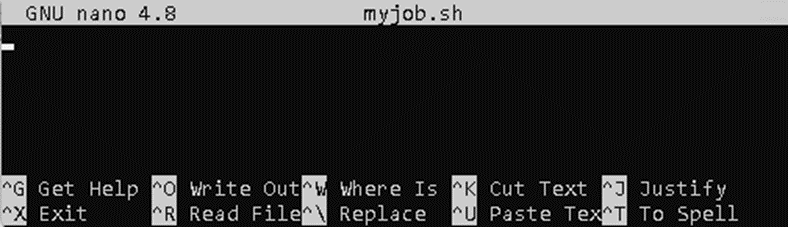
Once you are finished, you can save (or close) the file by pressing ‘CTRL+X’, then ‘Y’ (‘N’ if you don’t want to save), then press ‘ENTER’.
The file should follow that of a shell script, an example would be:
1 2 3 4 5 6 7 8 9 | |
A quick breakdown of what this means:
- The first line is called a ‘shebang’. Your shell scripts should have this as the first line.
- Lines beginning with ‘#SBATCH’ are used to pass directives to SLURM. These can be used to change the number of CPU cores, select partitions, select nodes, etc.
- The 2nd line sets the job name to “myjob”. This will show up when users use ‘squeue’.
- The 3rd line sets the partition to use (use "standard" for short jobs and "long" for jobs that'll take a long time to run.
- The 4th and 5th line limits the job to 1 node and will run 1 task on that node.
- The 6th line requests 4 CPU cores per task.
- The 7th line requests 4 GB of ram per task.
- The 8th line sets the maximum run time to 1 hour.
- The 9th line is the command that SLURM will run (This is where your compute work will go).
To put this in simple terms, this script is telling SLURM that it wants to run a single task and needs 4 CPU cores and a total of 4 GB of ram.
There are many commands that can be used to accomplish different compute setups. A list of options is available here: https://slurm.schedmd.com/sbatch.html
Launching a SLURM job
Once you have a completed job script, you can submit it to SLURM using the ‘sbatch’ command:
1 | |
This will submit the job to SLURM, which will allocate resources when they become available.
To see the job in the queue, run the ‘squeue’ command that was described above. To limit the output to just your jobs, use the following (replacing username with your own username):
1 | |
Launching an interactive session
Generally, it is recommended to use SLURM jobs over interactive sessions. This is because interactive sessions can be left idle and stop other people’s jobs from being able to run. If using an interactive session, consider restricting the number of cores to a minimum.
An interactive session can be started in the terminal using the command:
1 | |
Locations and storage
When you first login, you should be in the folder “~”. This is your ‘home’ folder, actual location is /home/username/
You can store files/programs here but note that others may not have read/write access to these files. For laboratory wide files, it is recommended you use the ‘labs’ folder, located /labs/labname/ (/labs/SysMedBio/ in our case).
There is a fast local storage system (known as a scratch system for temporary files). It can only be accessed from the compute node (the head node cannot access this folder). It is located here /labs/workspace/
Do note that this is a shared drive and meant for only temporary storage. Consider it volatile storage, where files could be deleted at any time. So do not store anything important on there without backup.
You have your own R installation, including library. So be sure to install packages that you require before trying to run scripts. The location of your R library is probably: ~/R/x86_64-pc-linux-gnu-library/4.x.x/ (please don’t copy libraries from elsewhere to this folder, rather, install using the install.packages or devtools::install_github functions).